
How to Track QR Code Scans in Google Analytics (Free)
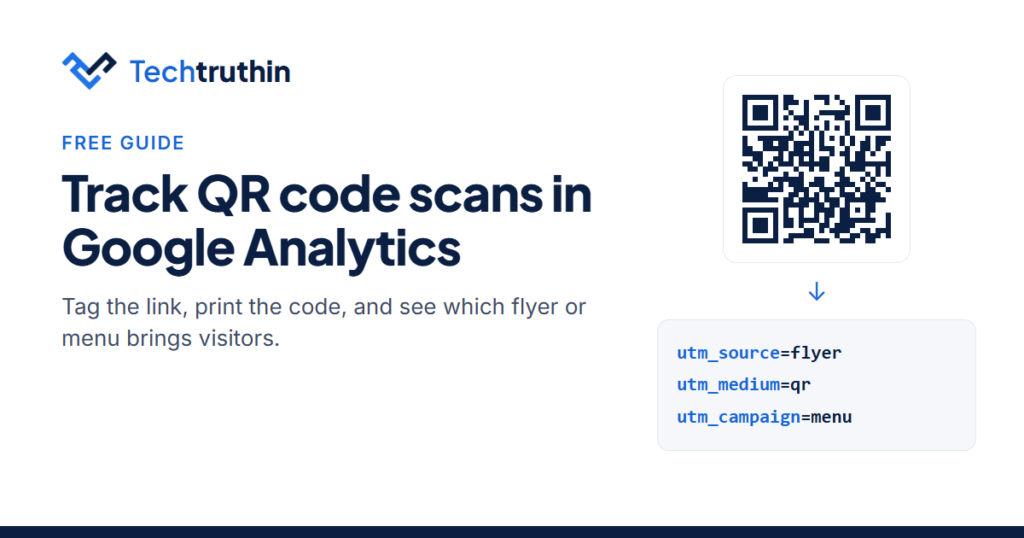
You printed a QR code on a flyer, a menu or a shop window, and now you want to know whether anyone actually uses it. Most QR services answer that with a paid “dynamic” code that counts every scan. There is a free alternative if your website already runs Google Analytics: add campaign tags to the link before you turn it into a QR code. This guide shows how to do that, how to read the results in GA4, and what this method can and can’t tell you.
The short answer
- A plain QR code can’t count scans. It is just a picture of your link. Nothing records the moment a phone reads it.
- Google Analytics can count the visits it sends. Add UTM tags to the link, such as
utm_source=flyer, and every visit from that code is labelled in your reports. - It is free and never expires, because the tags live inside the link and no redirect service sits in between.
Why QR visits disappear in Google Analytics
When someone clicks a link on a website, their browser usually tells your site where they came from. A phone camera doesn’t do that. A visit from a scanned QR code arrives with no referring site, so GA4 files it the same way as someone typing your address or opening a bookmark. Your flyer might be working well, but its visits blend into the “Direct” row with everything else.
UTM parameters fix this. They are labels added to the end of the address after a question mark, and Google Analytics reads them when the page loads. Google’s help page on URL builders lists the ones it supports. The three that matter here are:
- utm_source: what sent the visit. For print, name the item:
flyer,menu,business_card. - utm_medium: the type of link. For QR codes,
qris clear and easy to filter on. - utm_campaign: the promotion or period, such as
eid_offerorwinter_menu_2026.
Google says you should always set these three. If you leave one out, that field shows as “(not set)” in your reports.
Step by step: make a trackable QR code
1. Choose the landing page
Point the code at a page that has your Google Analytics tag on it, ideally the page people actually want: the menu, the offer or the booking form, not just your home page. Analytics can only count visits to pages where its code runs.
2. Build the tagged link
Open our free UTM Builder, paste the page address and fill in source, medium and campaign. For a café flyer it might produce:
https://yourcafe.com/menu?utm_source=flyer&utm_medium=qr&utm_campaign=winter_menu_2026
Keep every value in lowercase. Google’s help page is explicit that values are case sensitive: utm_source=google and utm_source=Google count as two different sources. The builder’s “Tidy values” option lowercases everything and replaces spaces with underscores so a stray capital doesn’t split your numbers.
3. Give each printed item its own link
One link for every place a code appears is what makes the data useful. If the same flyer goes to two neighbourhoods, add utm_content to tell them apart, for example utm_content=gulberg and utm_content=dha. Google describes utm_content as the way to differentiate links that point to the same place. Write your names down in a small list and reuse them, so March’s “flyer” and April’s “flyers” don’t become separate rows.
4. Turn the link into a QR code
The UTM Builder draws a QR code of the finished link and lets you download it as PNG or SVG. You can also paste the tagged link into our QR Code Generator if you want colours, a different error correction level or a printable size guide. Either way the result is a static code: the full tagged address is stored in the pattern, so it keeps working as long as the page exists. Our guide on whether QR codes expire explains why that matters.
Tags make the link longer, and a longer link makes a denser pattern that is harder to scan when printed small. Short values help: flyer rather than printed_flyer_version_two.
5. Test before you print
Scan the code with your own phone, then open GA4’s Realtime report. Google says Realtime data typically appears within a few minutes, so you should see a visit with your source and medium almost straight away. If it shows up as Direct, the tags were lost somewhere, usually because the page redirected to a different address without them.
Where to see QR code visits in GA4
In Google Analytics, open Reports, then Acquisition, then Traffic acquisition. Change the first column of the table to “Session source / medium” and look for rows such as flyer / qr. Switch it to “Session campaign” to compare promotions. Google’s help page points to these same dimensions for campaign data.
Standard reports are not instant. According to Google’s page on data freshness, daily data for a standard property typically takes about 12 hours to process. Check yesterday’s numbers rather than this morning’s.
Why your QR visits show as “Unassigned”
GA4 groups visits into channels such as Email, Organic Social and Referral. It decides the channel from the source and medium, using the rules on Google’s default channel group page. There is no rule for print or QR codes, so a medium of qr doesn’t match anything and those visits land in “Unassigned”.
That isn’t an error. The visits are still there with your source, medium and campaign, and you can find them with the steps above. If you want a tidy “QR codes” line in your channel reports, you have two options.
Option 1: add a custom channel group (recommended)
Google Analytics lets you create your own channel groups. Per Google’s custom channel group guide:
- Go to Admin, then Data display, then Channel groups. You need Editor access or above.
- Copy the default channel group and give the copy a name.
- Choose “Add new channel”, call it “QR codes”, and add a condition where Medium exactly matches
qr. - Save it, and move the new channel above the others. Traffic goes into the first channel whose rules it matches, so order matters.
Google says custom channel groups apply to your reports retroactively, so past QR visits move into the new channel too. A standard property can have two custom groups alongside the default one.
Option 2: use a medium GA4 already knows
You could tag codes with a recognised medium, for example referral. The visits would then sit under Referral. That works, but it mixes printed codes with real links from other websites, which makes both harder to read. A custom channel is cleaner.
What this method can’t tell you
UTM tracking counts visits, not scans. Be honest with yourself about the gap:
- Scans that never load the page aren’t counted, for example when someone scans, sees the address and closes it.
- Visitors who block analytics or decline cookies may be missing or only partly reported, depending on your consent setup.
- You can’t change the destination after printing. The tagged address is fixed in the code. If you might need to change it, point the code at a page on your own site that you can update, instead of a page you don’t control.
A dynamic QR service closes some of these gaps by sending every scan through its own server first. That is exactly what makes those codes stop working when a subscription ends. For most small businesses, “how many people visited from the flyer” is the number that matters, and UTM tags give it to you for free.
The same trick works for WhatsApp and social bios
Anything that sends people to your website can carry UTM tags: the link in your Instagram bio (utm_source=instagram&utm_medium=social), your email signature, or the website button in a WhatsApp Business profile. If the goal is a chat rather than a website visit, use our WhatsApp Link Generator instead and put a different ready-typed message on each code, such as “Hi, I scanned your menu”. You’ll see where each chat came from as soon as it arrives.
QR code tracking questions
Can Google Analytics track QR code scans?
Not the scan itself, but it can track the visits a QR code sends to your website. Add UTM tags to the link before making the code, and GA4 labels those visits with the source, medium and campaign you chose.
Can I track a QR code for free?
Yes. Google Analytics is free, and so is adding UTM tags and making a static QR code. You don’t need a dynamic QR subscription unless you want raw scan counts or to change the destination after printing.
What utm_medium should I use for QR codes?
Something short and consistent, such as qr. GA4 has no default channel for print, so those visits show as Unassigned until you create a custom channel group with a rule for that medium.
Why don’t my QR code visits show up in GA4?
Check three things: that the landing page has your Google Analytics tag, that the page doesn’t redirect and drop the tags, and that you’re looking at data at least half a day old in standard reports. Use the Realtime report to test a fresh scan.
Will adding UTM tags break my QR code later?
No. The tags are part of the address, and pages simply ignore labels they don’t use. The code keeps working as long as the page exists. Only longer links matter, because they make the pattern denser, so keep the values short.
Sources
- Google Analytics Help: URL builders (UTM parameters, case sensitivity)
- Google Analytics Help: Default channel group
- Google Analytics Help: Custom channel groups
- Google Analytics Help: Data freshness
QR Code is a registered trademark of DENSO WAVE INCORPORATED. Google Analytics is a trademark of Google LLC. Techtruthin is not affiliated with either company. Checked against Google Analytics Help pages on 16 November 2026.
How this guide was made: researched and drafted with AI assistance, then checked against the official sources linked above before publishing. Editorial policy Report a mistake